How to get a mix from FL Studio to your iPhone
By Ryan Whitten · Updated October 2, 2026
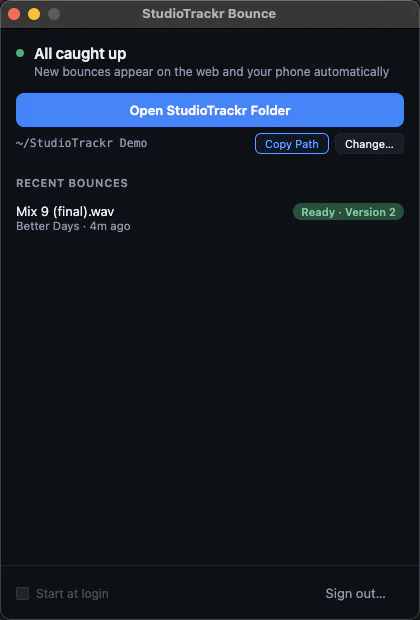
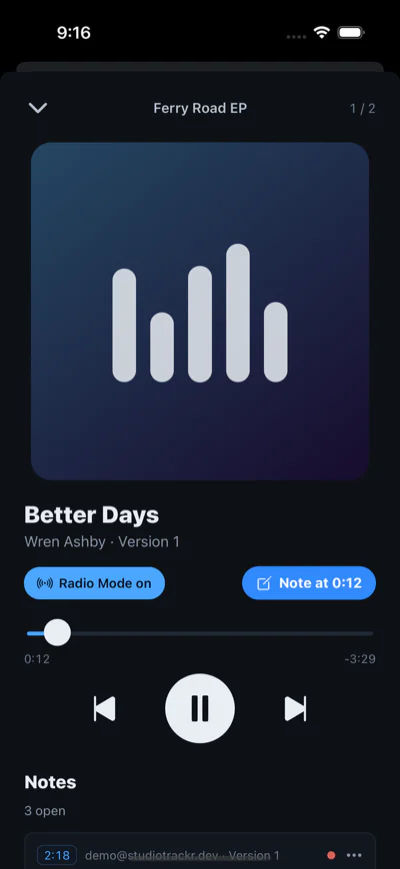
The quickest way to get a mix from FL Studio to your iPhone is to export it into the song's folder in StudioTrackr Bounce for Mac. It uploads as that song's next version and plays on your phone, in album order with the rest of the project, before you've left the room.
Export the mix from FL Studio
- Choose File > Export > Wave file.
- When FL Studio asks where to save, choose the song's folder inside your StudioTrackr folder and name the mix.
- In the render settings, choose 24-bit WAV and leave the tail on Leave remainder, so reverb and delay tails aren't cut off.
- Start the render.
FL Studio tips
FL Studio can write several formats in one render: select more than one, like WAV and MP3, and you get both. StudioTrackr only needs the WAV; it makes its own playback copy.
Show file(s) when complete opens the folder after the render, which is a quick way to check the mix went into the right song's folder.
What happens next
StudioTrackr Bounce sees the new file, uploads it as the song's next version, and it's on your iPhone, on the lock screen and in CarPlay. Filenames don't matter: the folder decides the song, and bouncing the same name twice gives you two versions, not one overwritten file. If the wifi drops, it keeps trying until the mix is up.
Listen, tap to leave a note at the second you hear something, and the note lands on the song's punch list for your next session in FL Studio. How it works →
First time?
- Start a free StudioTrackr project and add your songs.
- Download StudioTrackr Bounce for Mac and sign in. It creates the StudioTrackr folder with a folder for each song.
- Install StudioTrackr on your iPhone from the App Store.
Comparing other ways to get a mix onto your phone, like Apple Music sync, AirDrop or Dropbox? How they stack up →